Getting started
The SAS Content SDK enables you to use the power of the SAS Viya platform in your own websites and
HTML applications. You can browse and select SAS Viya content with custom HTML elements such as
<sas-content-area>, <sas-content-tree>, and <sas-quick-drive>, or prompt the user with the
<sas-content-selector> and <sas-data-selector> dialogs. See the
API Reference for the full list of elements.
Installation
NPM
The
@sassoftware/content-components
library is published to NPM and can be installed by running the npm install command as shown
below. content-components does not support ES6 imports. Therefore, the contents of the
content-components/dist folder must be deployed with your page, and then loaded using a script
tag.
# From the root directory of your project
npm install @sassoftware/content-components

# Copy the contents of the package to an asset folder for deployment
cp -r ./node_modules/@sassoftware/content-components ./sdk-assets/content
The library can then be loaded out of the deployed assets folder using a script tag.
<script async src="./sdk-assets/content/dist/umd/content-sdk-components.js"></script>
CDN (Content Delivery Network)
Accessing the content-components library from the SAS Developer CDN is easy. It does not require
installation or hosting of the library code and assets. Here is an example of loading the latest
version of content-components from the CDN using an HTML script tag.
<script
  async
  src="https://cdn.developer.sas.com/packages/content-components/latest/dist/umd/content-sdk-components.js"
></script>
When the library is used in production, consider pinning it to an explicit version. This is done
with a URL like
https://cdn.developer.sas.com/packages/content-components/${VERSION}/dist/umd/content-sdk-components.js,
where ${VERSION} is the full major.minor.patch semantic version.
SAS Viya platform setup
The Content Components SDK requires connecting directly to the SAS Viya platform. Server setup requirements for connecting to the SAS Viya platform are covered in the Getting Started Guide.
Finding Folder and Item URIs
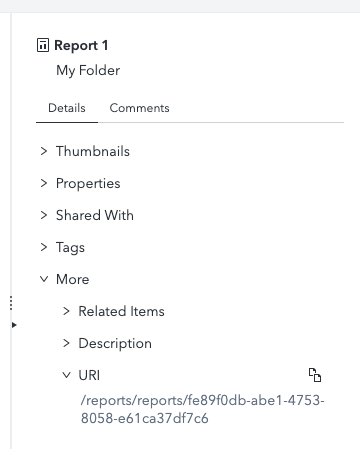
You can find the URI for a Folder or content item in SAS Drive in the Information Pane. Select the Folder or item, scroll down in the Information Pane to the More -> URI section and copy the URI.
See our examples
Our examples demonstrate a few different ways to start using the SAS Content SDK in your HTML application.