Getting started
The SAS Visual Analytics SDK enables you to use the power of SAS Visual Analytics in your own
websites and HTML applications. You can embed entire reports with the <sas-report> custom HTML
element, embed a single object with the <sas-report-object> element, or connect to your reports
with our JavaScript API.
Installation
NPM
The
@sassoftware/va-report-components
library is published to NPM and can be installed by running the npm install command as shown
below. va-report-components does not support ES6 imports. Therefore, the contents of the
va-report-components/dist folder must be deployed with your page, and then loaded using a script
tag.
# From the root directory of your project
npm install @sassoftware/va-report-components

# Copy the contents of the package to an asset folder for deployment
cp -r ./node_modules/@sassoftware/va-report-components ./sdk-assets
The library can then be loaded out of the deployed assets folder using a script tag.
<script async src="./sdk-assets/dist/umd/va-report-components.js"></script>
CDN (Content Delivery Network)
Accessing the va-report-components library from a CDN is easy. It does not require installation or
hosting of the library code and assets. There are several public options for accessing NPM content
through a CDN, such as UNPKG and
jsDelivr. Here is an example of loading the
0.10.0 version of va-report-components from UNPKG using an HTML script tag. When used in
production, the version should be pinned to the full major.minor.patch semantic version.
<script
  async
  src="https://unpkg.com/@sassoftware/va-report-components@0.10.0/dist/umd/va-report-components.js"
></script>
SAS Viya setup
Enable Cross-Origin Resource Sharing
By default, your SAS Viya deployment is not set up to allow access to REST API endpoints from
different domains. This is needed in order to connect to SAS Viya from the domain that is hosting
your HTML page. This domain needs to be added to the allowOrigins property in SAS Viya
deployment's CORS configuration. See
developer.sas.com and
SAS
Help Center for more information.
Cross-Site Request Forgery
SAS Viya servers protect against Cross-Site Request Forgery (CSRF) by blocking requests where the HTTP Referer Header does not match the URI of the requested resource or a URI whitelist. The domain of the site using the SAS Visual Analytics SDK must be whitelisted in the CSRF configuration. See SAS Help Center for more information.
Cross-Site Cookies
The SAS Visual Analytics SDK requires the use of cookies to handle authentication with the SAS Viya
Logon service. Browsers require that the response setting the cookie explicitly enable cross-site
cookies by setting samesite=none on the response header. This is not the default for SAS Viya and
must be configured in order to support the SDK. The sameSite configuration option in the
sas.commons.web.security.cookies definition should be set to None, and should be applied
globally to all services. See
SAS
Help Center for more information.
Allow guest access
The SAS Visual Analytics SDK has the option to connect to the SAS Viya server using guest authentication. This requires that the SAS Viya system be set up to enable guest access, and that the guest user has access to the appropriate report content and data. For more information, see SAS Help Center.
Include a custom elements polyfill
A custom
elements polyfill is required for Microsoft Edge support. The following script tag should be
added before the va-report-components script tag.
<script src="https://unpkg.com/@webcomponents/custom-elements"></script>
Create a custom HTML tag
To build the custom HTML tag that you will embed in your web page:
- Open a report in SAS Visual Analytics.
- Open the menu in the report toolbar (which is displayed in the image below) or right-click an individual object, and then select Copy Link. The Copy Link window is displayed.
- If you are using guest access, expand the Options heading and select the Guest access check box.
- Click Copy Link.
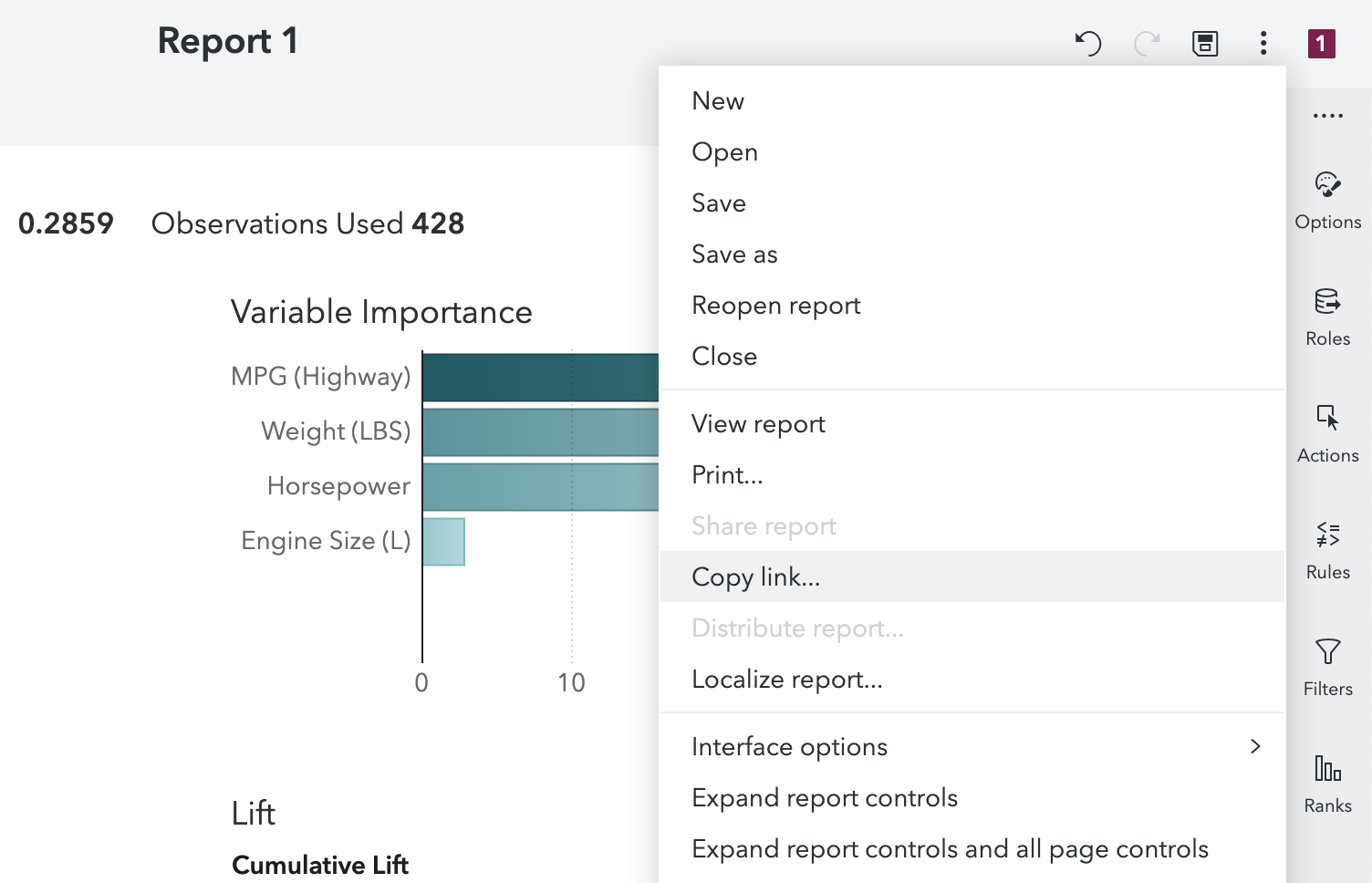
Once the report link or object link has been copied to your clipboard, paste it below, and the output will show a custom HTML tag that is ready to use.
For a complete list of options, see the documentation for
SASReportElement and
SASReportObjectElement
See our examples
Our examples demonstrate a few different ways to start using the SAS Visual Analytics SDK in your HTML application.